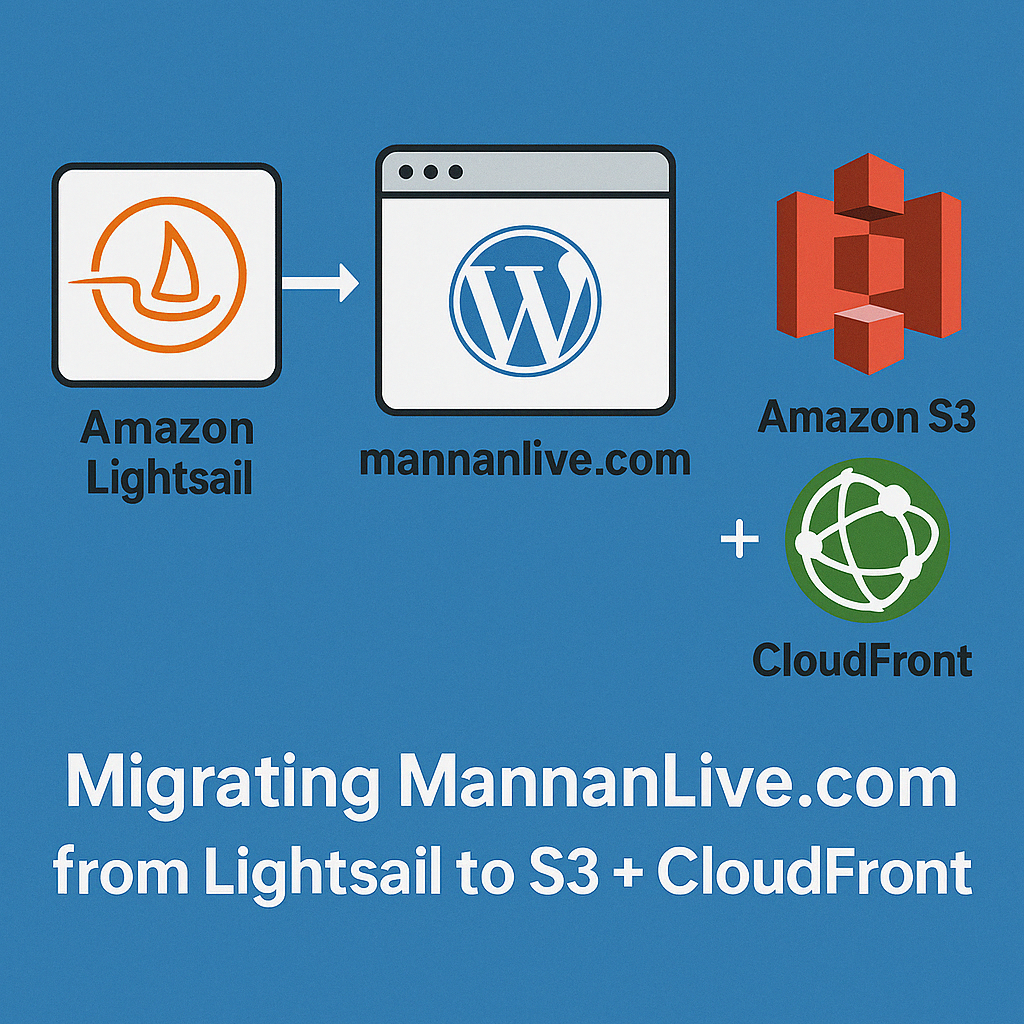
After almost a decade of running MannanLive.com on WordPress via Amazon Lightsail, I finally decided to pull the plug and move everything to a simpler, static setup using Amazon S3 and CloudFront.
Why the change? A few reasons, really. First, while Lightsail is pretty affordable at $5 USD a month, the cost adds up – especially when you factor in the Australian dollar and how infrequently I actually update the site. Paying nearly $100 a year for something I barely touch started to feel like buying a gym membership for a gym I never go to.
Second, I’d been meaning to upgrade WordPress for a while, but the process would’ve involved blowing away the existing setup and re-importing everything. And honestly, if I was going to nuke it and start fresh, why not rethink the whole thing?
Thirdly, I wanted to use HTTPS certificates. I always judge websites that don’t so felt a bit hypocritical that my blog from 2012 didn’t.
Finally, the truth is… I don’t really use WordPress for anything dynamic. No comments, no logins, no bells or whistles. Just a few posts here and there. So going static? No real downside. Just faster load times, less maintenance, and zero backend to babysit.
In this post, I’ll walk through how I made the switch, what tools I used, and a few tips if you’re thinking about doing the same.
Setting up the S3 Bucket and CloudFront Distribution
Before anything else, I’ll assume you already have your domain registered with Route 53 and a valid certificate issued via AWS Certificate Manager (ACM). ⚠️ Heads up: your SSL certificate must be created in the us-east-1 region for it to work with CloudFront. Even if your whole setup lives elsewhere, CloudFront only recognizes certificates in that region. Fun quirk.
To keep things clean and repeatable, I used CloudFormation to manage all the infrastructure. I’ve learned the hard way that manually stitching resources together through the AWS console might be fine at first – but it quickly becomes painful when you need to update, replicate, or tear things down later. Infrastructure as code just makes life easier.
I didn’t start from scratch either. I used the excellent guide by @tiamatt on dev.to as a base, which gets you 90% of the way there. From there, I made a few changes:
- Simplified the domain setup: Instead of managing both
mannanlive.comandwww.mannanlive.comas separate sites/aliases, I consolidated everything under a single bucket & distribution. No need for redundancy when I’m not using subdomains for anything fancy. - Unified the CloudFormation template: I merged everything into one cohesive template, making it easier to deploy and manage without juggling multiple stacks.
The CloudFormation template I ended up with does the following:
- Creates an S3 bucket to host the static files
- Sets up a CloudFront distribution pointing to that bucket and using the supplied ACM
- Adds a bucket policy to allow CloudFront to read from it
- Configures a CloudFront Function to cleanly map paths
- like https://mannanlive.com
/blog/post-title/to S3 resource/blog/post-title/index.html
- like https://mannanlive.com
That last point is important for static sites where you want clean URLs without .html extensions everywhere. Without this function, CloudFront would try to look for a file that doesn’t exist in S3 and throw a 403.
AWSTemplateFormatVersion: 2010-09-09

Description: >-
  AWS CloudFormation template
  - Create a private S3 bucket for subdomain (such as www.example.com) and configure it to host a static website
  - Create an Origin Access Identity (OAI) which is a special CloudFront user that you can associate with Amazon S3 origins, so that you can secure S3 content
  - Create CloudFront distribution for subdomain. Point it to S3 bucket for subdomain (that contains static website, such as www.example.com) from which CloudFront gets the files to distribute
  - Create a policy for S3 bucket for subdomain (that contains static website, such as www.example.com) to let CloudFront OAI access S3 bucket content

Parameters:
  paramACMCertificateArn:
    Description: Public SSL/TLS certificate ARN published by AWS Certificate Manager (ACM)
    Type: String
  paramRootDomain:
    Description: Specify a root domain for your website (such as example.com)
    Type: String
  paramSubdomain:
    Description: Specify a subdomain (such as 'www' or 'apex' for www.example.com or apex.example.com).
    Type: String
    Default: www
  paramUniqueTagName:
    Description: Specify a unique name to tag the resources
    Type: String
    Default: static-website-hosting-to-s3
    AllowedPattern: "[\\x20-\\x7E]*"
    ConstraintDescription: Must contain only ASCII characters

Resources:

  # create S3 bucket for subdomain (such as www.example.com) and configure it to host a static website
  s3BucketForSubdomain:
    Type: AWS::S3::Bucket
    Properties:
      BucketName: !Sub ${paramSubdomain}.${paramRootDomain}
      WebsiteConfiguration:
        IndexDocument: index.html
      VersioningConfiguration: # turn versioning on in case we need to rollback newly built files to older version
        Status: Enabled
      AccessControl: BucketOwnerFullControl
      Tags:
        - Key: Website
          Value: !Ref paramUniqueTagName

  # create an Origin Access Identity (OAI) which is a special CloudFront user that you can associate with Amazon S3 origins, so that you can secure S3 content
  cloudFrontOAI:
    Type: AWS::CloudFront::CloudFrontOriginAccessIdentity
    Properties:
      CloudFrontOriginAccessIdentityConfig:
        Comment: 'OAI for S3 origins'

  # create CloudFront distribution for subdomain. Point it to S3 bucket for subdomain (that contains static website, such as www.example.com) from which CloudFront gets the files to distribute
  cloudFrontDistributionForSubdomain:
    Type: AWS::CloudFront::Distribution
    Properties:
      DistributionConfig:
        Comment: CloudFront distribution points to S3 bucket for subdomain
        Origins: # info about origins for this distribution
          - DomainName: !Sub '${paramSubdomain}.${paramRootDomain}.s3.${AWS::Region}.amazonaws.com' # Regional domain name of S3 bucket for subdomain (outputS3RegionalDomainNameForSubomain)
            Id: !Sub 'S3Origin-${paramSubdomain}.${paramRootDomain}' # unique identifier of an origin access control for this origin
            S3OriginConfig:
              OriginAccessIdentity: !Sub 'origin-access-identity/cloudfront/${cloudFrontOAI}'
        Aliases: # info about CNAMEs (alternate domain names), if any, for this distribution
          - !Sub '${paramSubdomain}.${paramRootDomain}'
          # Uncomment this if you want to use the root domain (such as example.com) for your website as well
          # - !Sub '${paramRootDomain}'
        # let CloudFront replace HTTP status codes in the 4xx and 5xx range with custom error messages before returning the response to the viewer
        CustomErrorResponses:
          - ErrorCode: 403 # 403 from S3 indicates that the file does not exists
            ResponseCode: 404 # HTTP status code that you want CloudFront to return to the viewer along with the custom error pag
            ResponsePagePath: '/error.html' # path to the custom error page that you want CloudFront to return to a viewer when your origin returns the HTTP status code specified by ErrorCode, for example, /4xx-errors/403-forbidden.html
            ErrorCachingMinTTL: 60 # minimum amount of time, in seconds, that you want CloudFront to cache the HTTP status code specified in ErrorCode
        DefaultCacheBehavior:
          AllowedMethods:
            - GET
            - HEAD
            - OPTIONS
          CachedMethods:
            - GET
            - HEAD
            - OPTIONS
          Compress: true
          DefaultTTL: 3600 # in seconds, 1 hour
          ForwardedValues:
            QueryString: false
            Cookies:
              Forward: none
          MaxTTL: 86400 # in seconds, 24 hours
          MinTTL: 60 # in seconds, 1 min
          TargetOriginId: !Sub 'S3Origin-${paramSubdomain}.${paramRootDomain}'
          ViewerProtocolPolicy: 'redirect-to-https' # 'allow-all'
          FunctionAssociations:
            - EventType: viewer-request
              FunctionARN: !GetAtt myCloudFrontFunction.FunctionMetadata.FunctionARN
        DefaultRootObject: 'index.html'
        Enabled: true # enable distribution
        HttpVersion: http2 # the maximum HTTP version(s) that you want viewers to use to communicate with CloudFront
        PriceClass: PriceClass_All # allowed values: PriceClass_100 | PriceClass_200 | PriceClass_All
        ViewerCertificate:
          AcmCertificateArn: !Ref paramACMCertificateArn
          SslSupportMethod: sni-only
      Tags:
        - Key: Website
          Value: !Ref paramUniqueTagName

  # create a policy for S3 bucket for subdomain (that contains static website, such as www.example.com) to let CloudFront OAI access S3 bucket content
  policyForS3BucketForSubdomain:
    Type: AWS::S3::BucketPolicy
    Properties:
      Bucket: !Sub '${paramSubdomain}.${paramRootDomain}'
      PolicyDocument:
        Statement:
          - Action: 's3:GetObject'
            Effect: Allow
            Resource: !Sub 'arn:aws:s3:::${paramSubdomain}.${paramRootDomain}/*'
            Principal:
              CanonicalUser: !GetAtt cloudFrontOAI.S3CanonicalUserId
          # deny access for non SSL access to S3 bucket
          - Sid: AllowSSLRequestsOnly
            Effect: Deny
            Principal: '*'
            Action: 's3:*'
            Resource:
              - !Sub 'arn:aws:s3:::${paramSubdomain}.${paramRootDomain}'
              - !Sub 'arn:aws:s3:::${paramSubdomain}.${paramRootDomain}/*'
            Condition:
              Bool:
                'aws:SecureTransport': false

  myCloudFrontFunction:
    Type: AWS::CloudFront::Function
    Properties:
      Name: !Sub 'append-index-html-${paramSubdomain}'
      FunctionConfig:
        Comment: Transforms requests like /foo/bar/ to /foo/bar/index.html
        Runtime: cloudfront-js-2.0
      FunctionCode: |
        function handler(event) {
          var request = event.request;
          if (request.uri.endsWith('/')) {
            request.uri += 'index.html';
          }
          return request;
        }
      AutoPublish: true


Outputs:
  outputCloudFrontDistributionForSubdomainId:
    Description: CloudFront distribution ID for subdomain
    Value: !Ref cloudFrontDistributionForSubdomain
  outputCloudFrontDistributionDomainNameForSubdomain:
    Description: CloudFront distribution domain name for subdomain
    Value: !GetAtt cloudFrontDistributionForSubdomain.DomainName
  outputS3WebsiteURLForSubdomain:
    Description: Amazon S3 website endpoint for subdomain
    Value: !GetAtt s3BucketForSubdomain.WebsiteURL
  outputS3DomainNameForSubdomain:
    Description:  IPv4 DNS name of S3 bucket for subdomain
    Value: !GetAtt s3BucketForSubdomain.DomainName
  outputS3RegionalDomainNameForSubdomain:
    Description:  Regional domain name of S3 bucket for subdomain
    Value: !GetAtt s3BucketForSubdomain.RegionalDomainName
Pointing Your Domain and Going Live
Once the CloudFormation stack is up and running, congratulations – you’ve now got yourself a fully functional static website hosted on S3 and fronted by CloudFront, secured via HTTPS.
The final step is updating your Route 53 DNS settings. Head over to your hosted zone, and update (or create) an A record for your domain or subdomain (e.g. subdomain.yourdomain.com) as an alias to your new CloudFront distribution. Make sure to choose “Alias to CloudFront distribution” in the record type, and point it to the distribution CloudFormation created.
Once that’s set and the changes propagate, you’re live. You can upload an index.html file (and whatever other static content you like) to your S3 bucket, and CloudFront will serve it at https://subdomain.yourdomain.com/. It’ll even handle pretty URLs like https://subodmain.yourdomain.com/about/ by looking for and serving about/index.html, thanks to the CloudFront Function we added earlier.
And that’s it – you’ve now got a low-cost, secure, low-maintenance static site setup.
If you’re already generating static content some other way, feel free to stop reading here and get on with your life. But if you’re curious how I converted my existing WordPress blog into a static version, that’s exactly what we’ll cover in the next section.
Converting WordPress to Static
With the infrastructure ready to go, the next step was to extract my WordPress content and turn it into a static site. I decided to migrate the site to a local WordPress instance and use that if I need to create a new post or change something.
To get one up and running quickly, I used Lando – a local development tool that simplifies spinning up dev environments with Docker. I had never used Lando before this, but I was genuinely surprised at how easy it was to install and get running.
All I had to do was create a simple .lando.yml file like this:
name: mannanlive
recipe: wordpress
config:
  webroot: wordpress
Then, just run:
lando start
And boom — you’ve got a full WordPress site running locally at /.
With my local WordPress site running smoothly under Lando, the next step was to bring in the content from the live site on Lightsail. To do this, I installed two plugins:
- WordPress Importer
This lets you export your entire WordPress site (posts, pages, media, etc.) and re-import it into another WordPress instance. I exported everything from my Lightsail site, then imported it into the local one.- ⚠️ Heads up: the import didn’t bring over everything perfectly — a few images and pieces of content were missing here and there. I didn’t mind since I’m fine with a slightly imperfect static archive, but if pixel-perfect migration is critical for you, double-check the output closely.
- Simply Static
Once I had the content in and styled how I wanted, I installed Simply Static to generate a static version of the site. This plugin creates a ZIP file of all your static content — HTML, CSS, images, etc. — ready to be uploaded.
When the ZIP is ready, extract it and run:
aws s3 sync simply-static-folder/ s3://subdomain.yourdomain.com
This syncs your freshly generated static site directly to your S3 bucket. Thanks to the CloudFront Function set up earlier, everything should Just Work™ — including clean URLs like https://mannanlive.com/blog/post-title/.
And with that, you’re done. Static site, HTTPS, fast, low-cost, and no more worrying about plugin updates or WordPress getting hacked while you’re not looking.
Wrapping Up
What started as a $5-a-month “eh, I’ll deal with it later” WordPress setup is now a fast, secure, zero-maintenance static site – and it feels great. No more worrying about plugin updates, database bloat, or surprise renewal fees for something I barely update. Just clean HTML, cheap S3 storage, and the smug satisfaction of finally crossing this off my tech debt list. If you’ve been putting off your own static site migration… take this as your sign. Future ‘You’ will thank you.